Everyone seems to be in a mild panic about the April 24, 2026 ADA Title II compliance deadline. Public universities need to ensure all digital content—including course videos—meets WCAG 2.1 Level AA accessibility standards. That means captions. Lots of captions. Better captions. Videos with sidecar files. Due yesterday.
The compliance machinery is real. Institutions serving 50,000+ people must comply by April 2026. Even with universities doing their best to provide support, the scope is still daunting: thousands of web pages to remediate, faculty training on accessible course materials, and vendor platform reviews for compliance.
Much of this work is landing on instructors mid-semester, with limited capacity and firm deadlines. It’s challenging (and stressful). I’m not using lecture videos this semester, but I am in the summer, which starts the moment the spring term ends. I can’t wait until the last minute.
I do what I do in cases like this, think about the command line, GitHub, and open-source tools. What can we do with the tools we already have to meet this challenge? The answer: OpenAI’s Whisper.
Whisper: Not Just for Meeting Notes
I’ve been using OpenAI’s Whisper for a while now to record—primarily to transcribe recorded presentations and meetings into my Obsidian notes. Turns out it’s also excellent for generating .srt caption files for lecture recordings, and it’s the most practical answer I’ve found to a genuinely difficult ask. It’s easy to use, runs on consumer hardware, and produces high-quality captions that meet accessibility standards.
Whisper is a speech recognition model that runs locally on your computer. It converts audio to text with surprising accuracy, handles multiple languages, and outputs in various formats including the .srt (SubRip) format that video players and Canvas both understand.
Installation and Basic Use
Installation is straightforward:
pip install openai-whisper
For a single video file:
whisper lecture.mp4 --model medium --output_format srt --language en
This generates a timestamped .srt file alongside your video. Upload both to Canvas or YouTube, and you’ve got accessible video content.
Batch Processing for Course Libraries
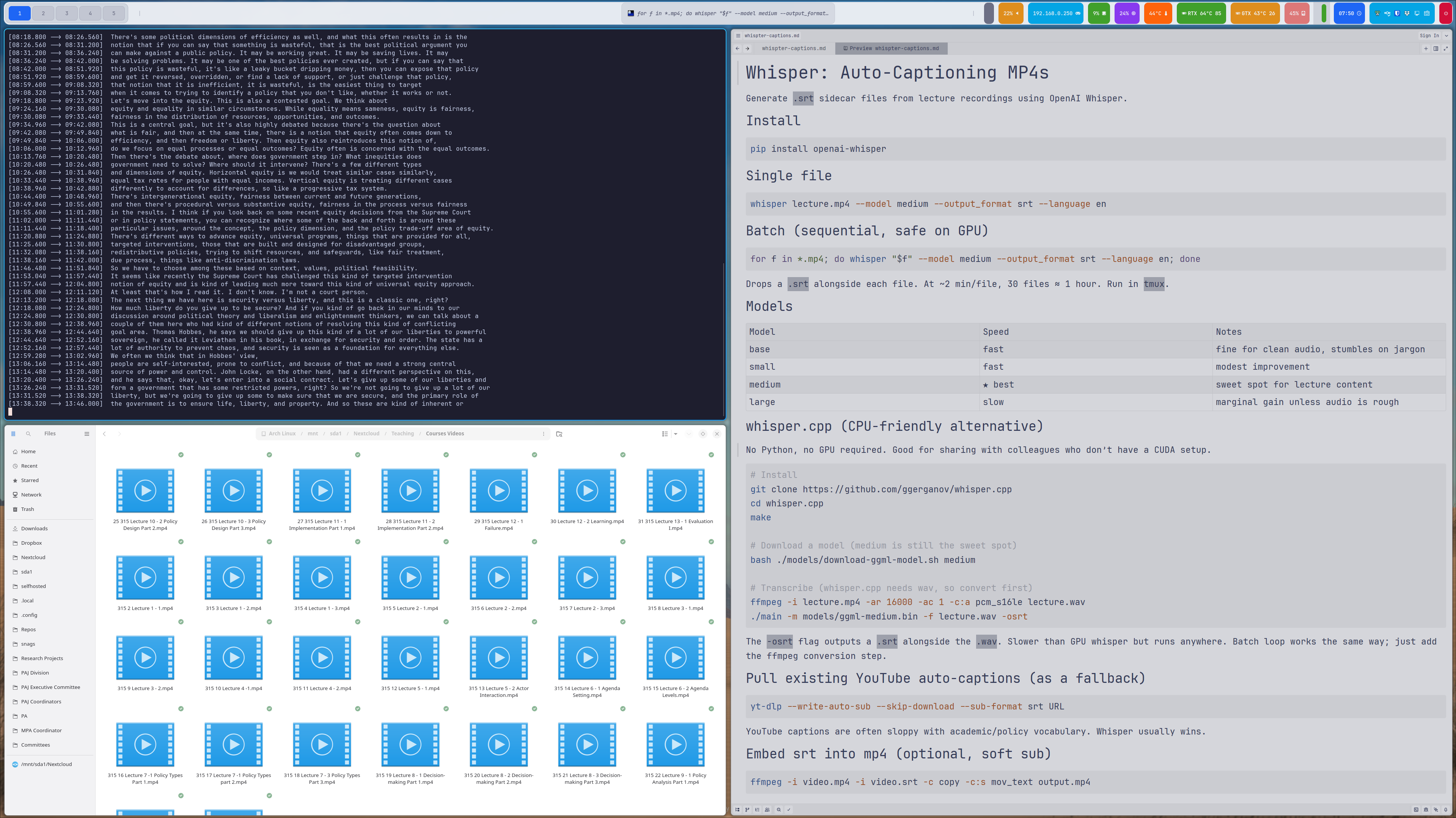
If you’re like most faculty, you have a folder full of lecture recordings accumulated over semesters. Whisper handles batch processing:
for f in *.mp4; do
  whisper "$f" --model medium --output_format srt --language en
done
Drop this in a shell script, point it at your lecture directory, let it run overnight. Wake up to captioned videos.
Model Selection and Performance
Whisper offers several models with different speed/accuracy tradeoffs:
- base: Fast, reasonable for clean audio
- small: Modest improvement, still quick
- medium: Sweet spot for lecture content (what I typically use)
- large: Best accuracy, slower, requires more GPU memory
For typical lecture recordings—decent microphone, minimal background noise—the medium model performs admirably. Technical jargon occasionally trips it up, but the results are 90%+ accurate and easily corrected.
The CPU vs. GPU Question
Whisper can run on CPU alone (no NVIDIA GPU required), making it genuinely accessible to anyone with a reasonably modern computer. GPU acceleration speeds things up considerably—a one-hour lecture might take 10-15 minutes on CPU, 2-3 minutes on GPU. But if you’re batch processing overnight, CPU-only works fine.
The whisper.cpp project offers an alternative implementation optimized for CPU performance. Worth exploring if you’re processing large video libraries without GPU access.
YouTube Captions as Fallback
If your lecture video is already on YouTube, pulling its auto-generated captions can be a fast fallback for Canvas uploads. This is helpful when you need a quick first-pass .srt, don’t have time to reprocess everything locally, or want a draft you can quickly edit for accuracy.
yt-dlp --write-auto-sub --skip-download --sub-format srt URL
This grabs YouTube’s auto-generated captions without re-downloading the video. Not perfect, but sometimes faster than re-processing. Edit the resulting .srt file for accuracy before uploading to Canvas.
Embedding Captions in Videos (Optional)
If you want captions permanently embedded in the video file itself (soft subtitles):
ffmpeg -i video.mp4 -i video.srt -c copy -c:s mov_text output.mp4
Canvas supports separate .srt files, so embedding captions is optional—but still useful when videos are shared outside Canvas or another LMS.
Why This Matters Beyond Compliance
Many faculty are being asked to do a large amount of accessibility work with limited lead time and in the middle of an active term. That frustration is understandable.
Even so, captions deliver immediate value: they help students in noisy settings, multilingual learners, students who process information better with text, and anyone trying to review specific parts of a lecture quickly. Accessibility work is compliance-driven right now, but the instructional benefits are long-term.
The Broader Accessibility Landscape
Captions are only one part of the requirement. Version 2.1 of the Web Content Accessibility Guidelines (Level AA) also expects readable document structure, usable PDFs, meaningful alt text, keyboard-friendly navigation, and sufficient color contrast. Institutions also need repeatable workflows so accessibility is maintained as courses evolve, not treated as a one-time cleanup.
Because many universities have very small digital accessibility teams, much of this work lands on instructors. We’ve got a lot of personnel working on this, which is great, but there’s a lot of work to do. Practical tools like Whisper don’t solve everything, but they make one high-impact task—video captions—much more manageable under real-world time pressure.
Getting Started
- Install Whisper:
pip install openai-whisper - Point it at a lecture video
- Upload the generated
.srtfile alongside your video in Canvas - Repeat for your course library
The April deadline is approaching. Whisper won’t solve every accessibility challenge, but it handles video captions efficiently—and runs on hardware you already own.
Resources
- Whisper GitHub Repository
- whisper.cpp (CPU-optimized)
- EDUCAUSE Digital Accessibility Resources
- WCAG 2.1 Guidelines
- DOJ ADA Title II Final Rule
For questions about institutional accessibility policies and support, contact your campus Digital Accessibility Office. For technical questions about Whisper implementation, the GitHub repository documentation is comprehensive.